
How to Configure a Multi-Monitor Setup in Sway
- Last updated: Feb 24, 2026

Sway is a lightweight and efficient tiling compositor for Wayland. Minimalist by design, it focuses on performance, simplicity, and active development.
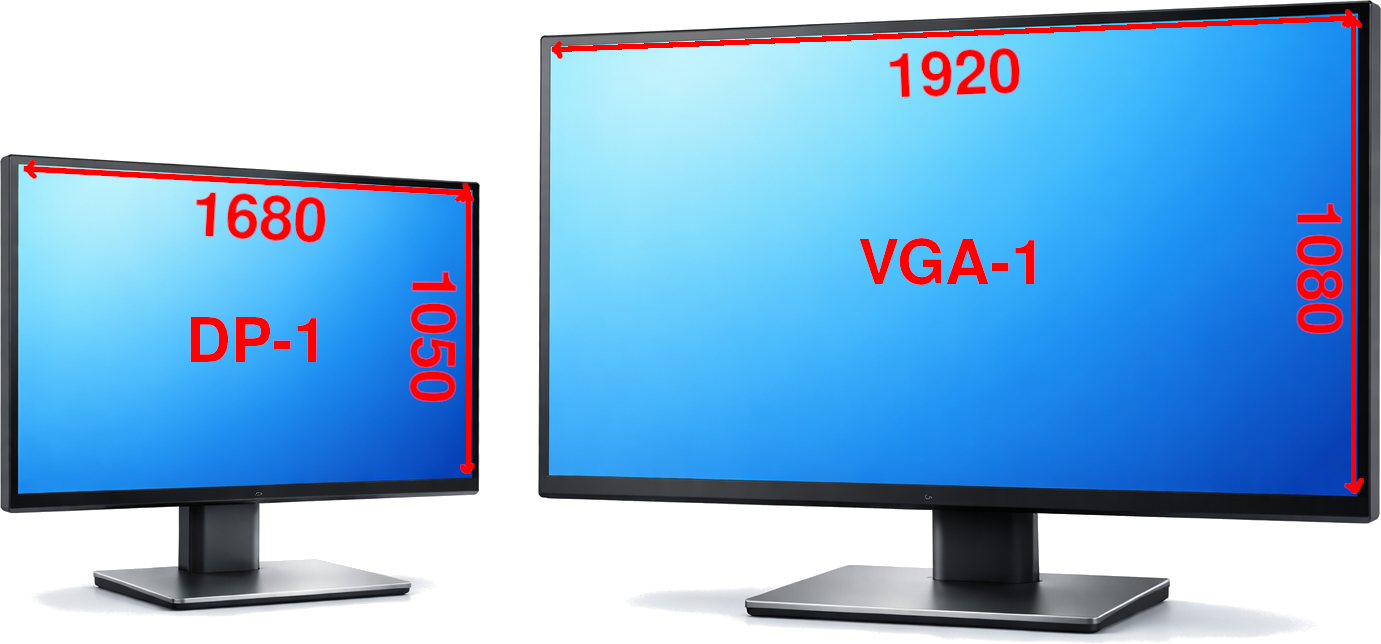
I personally use it on an older machine running Debian. My setup includes two monitors with different resolutions: 1680x1050 and 1920x1080. In this guide, I will show you how to configure a multi-monitor setup in Sway and enable extended display mode.
Identify Your Screens
The first step is to identify your screens. To configure a dual-monitor setup in Sway, you need to determine the resolution and connection type (VGA, DisplayPort, HDMI, etc.) of each monitor.
- Let’s look at the following example configuration:
- A monitor on the left connected via DisplayPort with a resolution of 1680x1050.
- A monitor on the right connected via VGA with a resolution of 1920x1080.
We want to extend the display across both screens.
- Use the
swaymsgcommand to display the required information. The most important details are the maximum resolution and the output name, which appears next to the Output label:
john@debian:~$ swaymsg -t get_outputs
Output DP-1 'Dell Inc. DELL P2210'
  Current mode: 1680x1050 @ 59.883 Hz
  Power: on
  Position: 0,0
  Scale factor: 1.000000
  Scale filter: nearest
  Subpixel hinting: unknown
  Transform: normal
  Workspace: 1
  Max render time: off
  Adaptive sync: disabled
  Allow tearing: no
  Available modes:
    1680x1050 @ 59.883 Hz
    1280x1024 @ 75.025 Hz
    1280x1024 @ 60.020 Hz
    1152x864 @ 75.000 Hz
    1024x768 @ 75.029 Hz
    1024x768 @ 60.004 Hz
    800x600 @ 75.000 Hz
    800x600 @ 60.317 Hz
    640x480 @ 75.000 Hz
    640x480 @ 59.940 Hz
    720x400 @ 70.082 Hz

Output VGA-1 'Iiyama North America PLX2783H' (focused)
  Current mode: 1920x1080 @ 60.000 Hz
  Power: on
  Position: 1680,0
  Scale factor: 1.000000
  Scale filter: nearest
  Subpixel hinting: unknown
  Transform: normal
  Workspace: 2
  Max render time: off
  Adaptive sync: disabled
  Allow tearing: no
  Available modes:
    1920x1080 @ 60.000 Hz
    1600x1200 @ 60.000 Hz
    1680x1050 @ 59.954 Hz
    1280x1024 @ 75.025 Hz
    1280x1024 @ 60.020 Hz
    1440x900 @ 59.887 Hz
    1280x960 @ 60.000 Hz
    1152x864 @ 75.000 Hz
    1152x720 @ 59.967 Hz
    1024x768 @ 75.029 Hz
    1024x768 @ 60.004 Hz
    832x624 @ 74.551 Hz
    800x600 @ 75.000 Hz
    800x600 @ 60.317 Hz
    640x480 @ 75.000 Hz
    640x480 @ 59.940 Hz
    720x400 @ 70.082 Hz
Extend the Display
Now that we have gathered the required screen information, we can configure Sway to extend the display across both monitors.
The horizontal position value (1680) corresponds to the width of the first monitor. Since DP-1 has a width of 1680 pixels, placing the second monitor at position 1680 0 ensures that it starts exactly where the first screen ends.
In general, when arranging monitors side by side, the X position of the second screen must match the width of the screen placed to its left. The Y value remains 0 when both monitors are aligned at the top.
Temporary Configuration with the swaymsg Command
- You can use the
swaymsgcommand to temporarily apply the configuration. First, set the1680x1050monitor (DP-1) as the left display at position0 0:
john@debian:~$ swaymsg output DP-1 resolution 1680x1050 position 0 0- Then configure the second monitor (VGA-1) with a
1920x1080resolution and position it to the right of the first screen:
john@debian:~$ swaymsg output VGA-1 resolution 1920x1080 position 1680 0- You can perform many actions with the
swaymsgcommand. For example, you can adjust the display scale factor:
john@debian:~$ swaymsg output VGA-1 scale 1.2- You can also display the currently running configuration:
john@debian:~$ swaymsg -t get_configMaking the Configuration Persistent
- Once the configuration is working as expected, make it persistent by editing the
~/.config/sway/configfile and adding the correspondingoutputdirectives:
### Output configuration
#
# Default wallpaper (more resolutions are available in /usr/share/backgrounds/sway/)
# This is commented in Debian, because the Sway wallpaper files are in a separate
# package `sway-backgrounds`. Installing this package drops a config file to
# /etc/sway/config.d/
# output * bg /usr/share/backgrounds/sway/Sway_Wallpaper_Blue_1920x1080.png fill
#
# Example configuration:
#
#   output HDMI-A-1 resolution 1920x1080 position 1920,0
#
# You can get the names of your outputs by running: swaymsg -t get_outputs
output DP-1 resolution 1680x1050 position 0 0
output VGA-1 resolution 1920x1080 position 1680 0
# Set WorkSpaces
# Format : workspace <NAME> output <DISPLAYNAME>
workspace 1 output DP-1
workspace 2 output VGA-1