rss logo

Install Elastic Agent on Windows with Fleet

Elastic Agent logo

Now that our full Elastic Stack deployment is installed and includes a ready-to-use Fleet Server, we can start enrolling Elastic Agents to monitor Windows servers.

In this tutorial, we will install Elastic Agent on Windows servers, add the Windows integration in Kibana, and use the built-in Elastic Stack dashboards to monitor Windows logs and events.

Network Architecture Diagram

As shown in the diagram, Elastic Agents are installed on each Windows Server. They send Windows logs, metrics, and security events to the Fleet Server, which listens on port 8220/tcp.
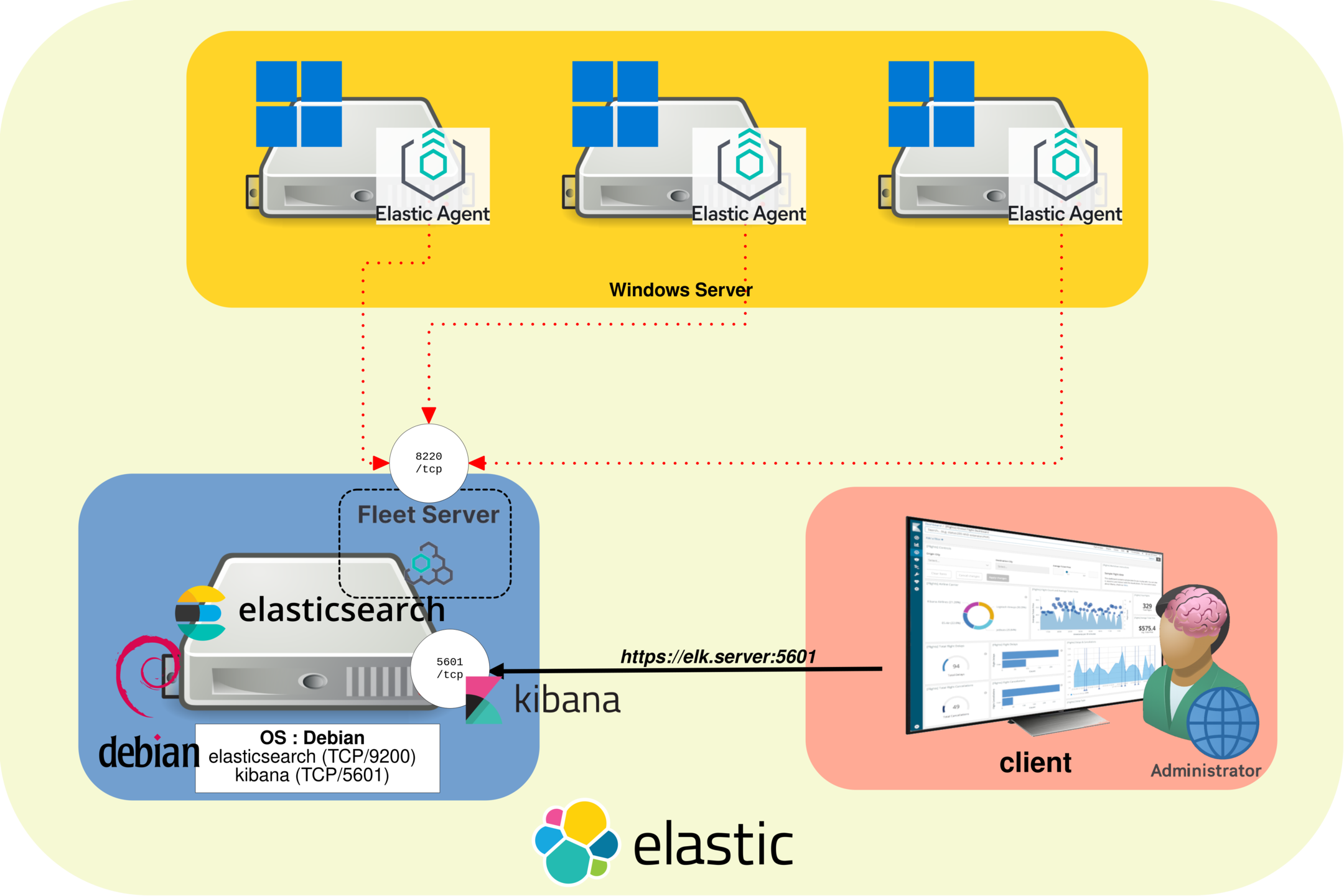
Network architecture diagram showing Elastic Agents installed on Windows servers sending logs, metrics, and security events to a Fleet Server on port 8220 TCP, with Kibana access on port 5601 TCP
Elastic Agent architecture for monitoring Windows servers with Fleet Server, Elasticsearch, and Kibana.

Add the Windows Integration in Kibana

First, open Kibana to add the Windows integration. From there, you can also retrieve the complete PowerShell command used to install and enroll Elastic Agent on a Windows Server with Fleet.

  • In Kibana, open the main menu and go to Management → Integrations:
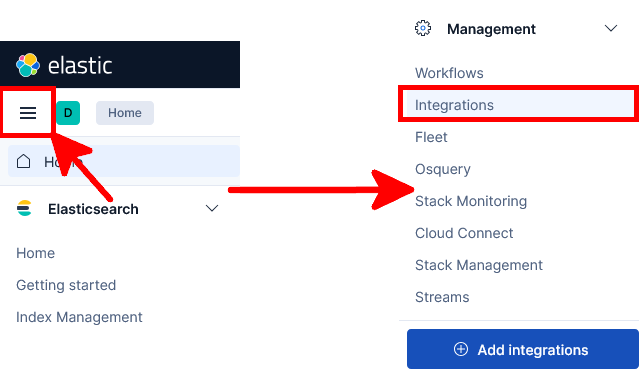
Kibana interface showing how to open the main menu and access Management Integrations
Accessing the Integrations menu in Kibana.
  • Search for Windows, then click the Windows integration:
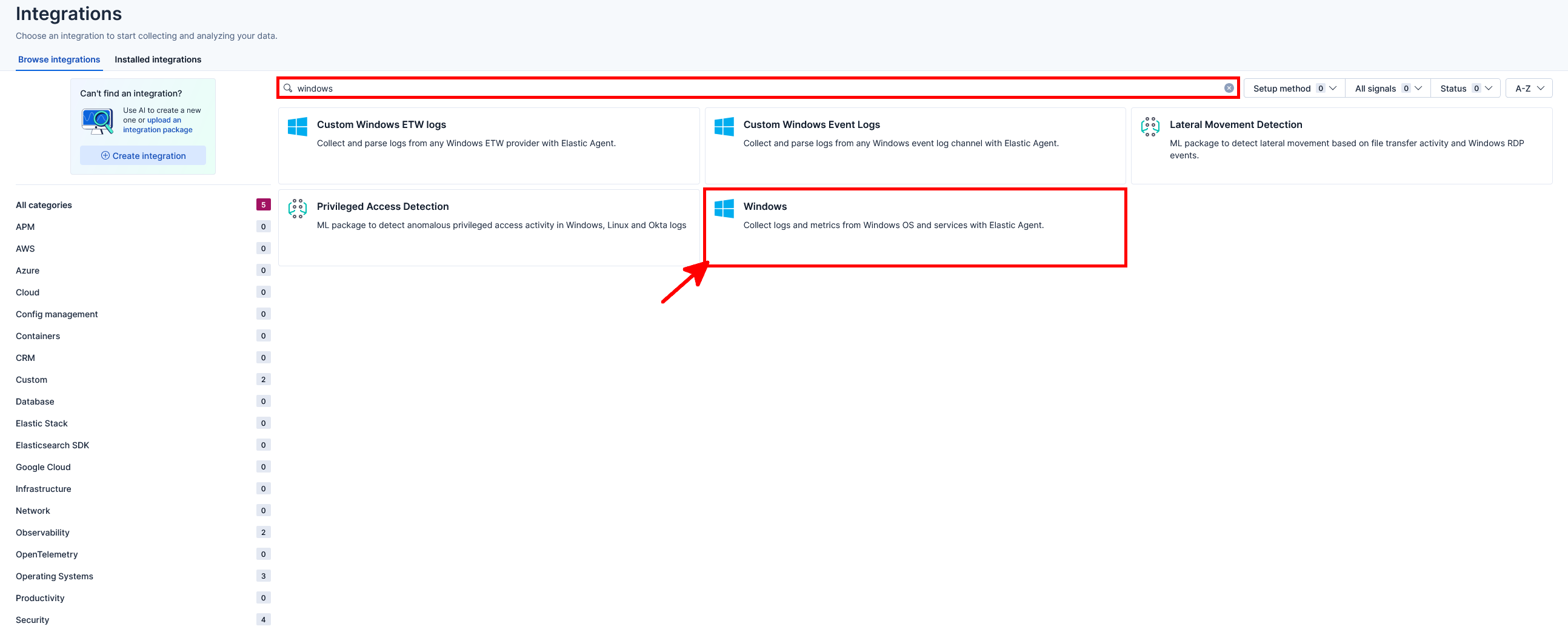
Kibana Integrations page showing a search for Windows and the Windows integration selected
Searching for the Windows integration in Kibana.
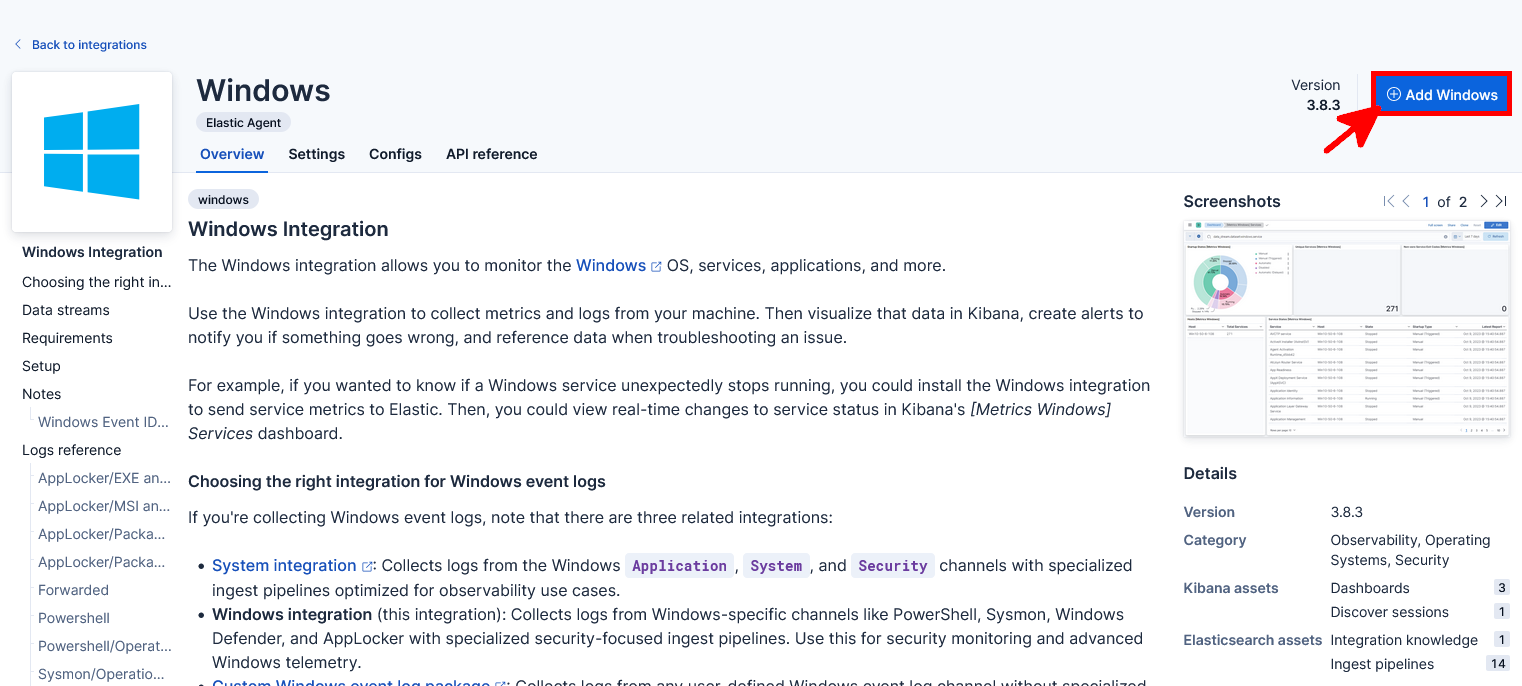
  • Click the Add Windows button:
Kibana Windows integration page showing the Add Windows button used to configure Windows monitoring with Elastic Agent
Adding the Windows integration in Kibana.
  • Enter a name for the Windows integration, then scroll down:
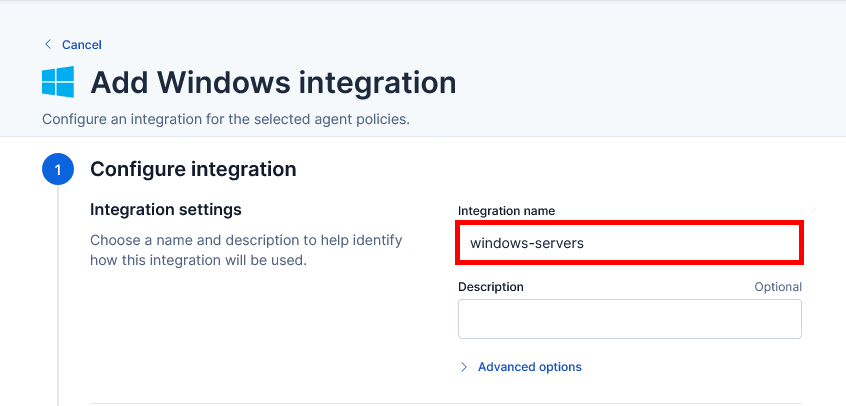
Kibana Add Windows integration page showing the integration name field configured for Windows servers
Naming the Windows integration in Kibana.
  • At the bottom of the page, select the Existing hosts tab, choose the Fleet Server Policy, then click Save and continue:
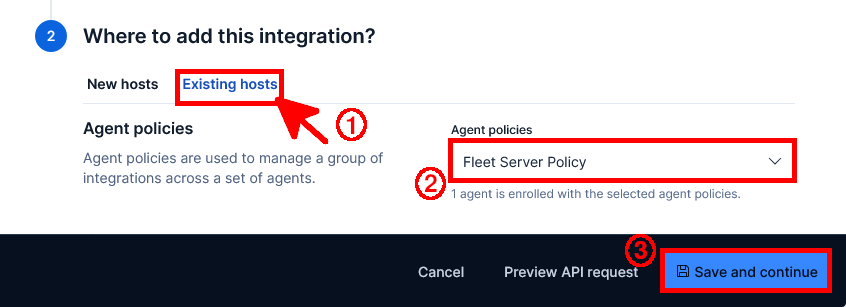
Kibana Add Windows integration page showing the Existing hosts tab, the Fleet Server Policy selection, and the Save and continue button
Adding the Windows integration to an existing Fleet policy.
  • Finally, click Save and deploy changes to apply the Windows integration to the selected Fleet policy:
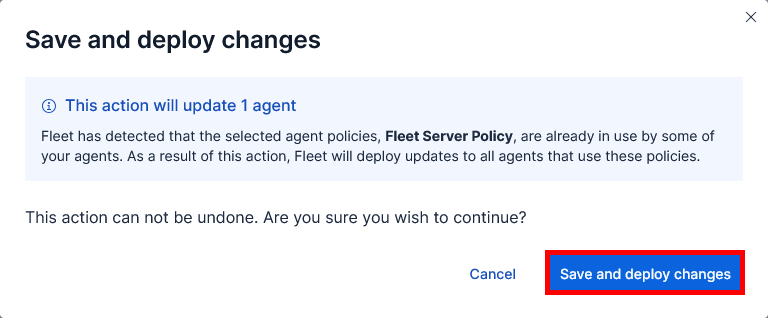
Kibana confirmation dialog showing the Save and deploy changes button used to apply the Windows integration to the selected Fleet policy
Deploying the Windows integration changes to the selected Fleet policy.

Install Elastic Agent on Windows with Fleet

  • In Kibana, open the main menu and go to Management → Fleet:
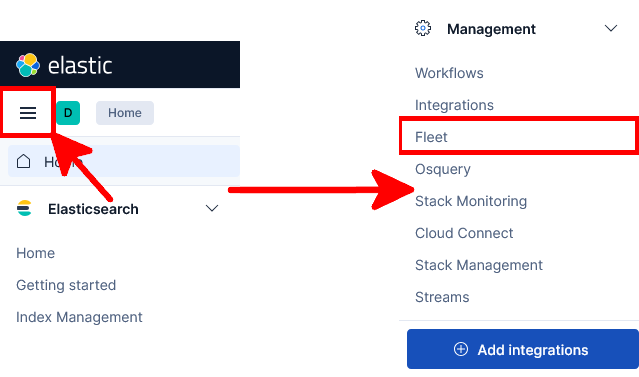
Kibana interface showing how to open the main menu and access Management Fleet
Accessing the Fleet menu in Kibana.
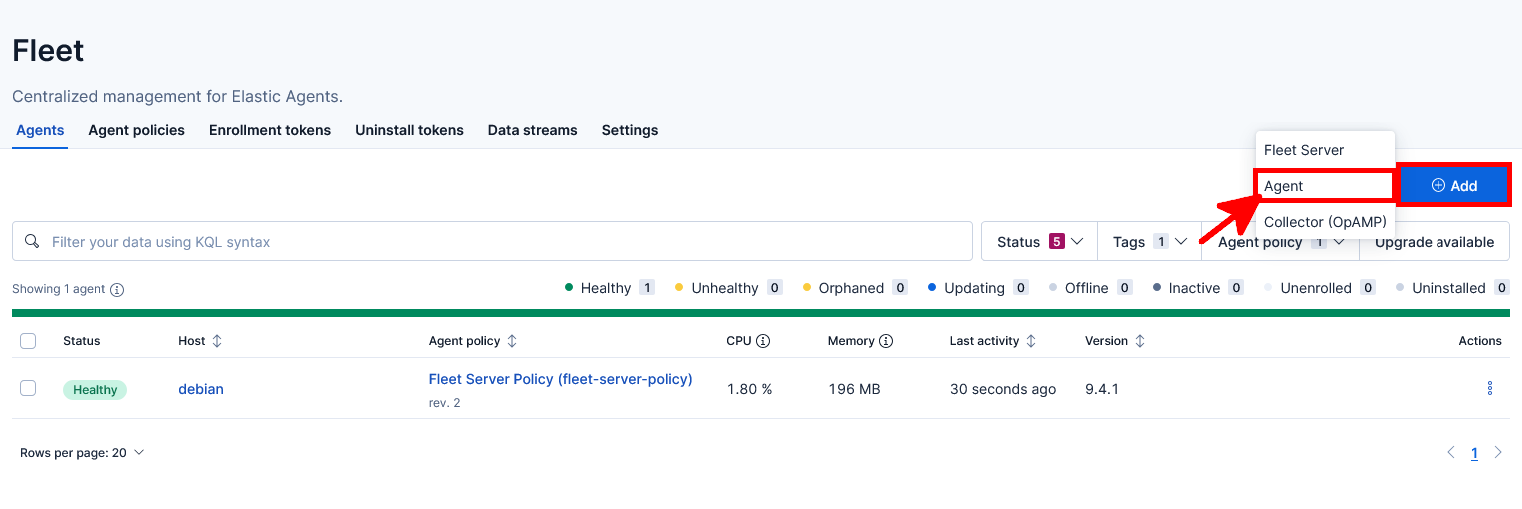
  • Click Add, then select Agent:
Kibana Fleet page showing the Add menu used to select Agent and enroll a new Elastic Agent
Adding a new Elastic Agent from the Fleet page in Kibana.
  • Enter a name for the agent policy, then click Create policy:
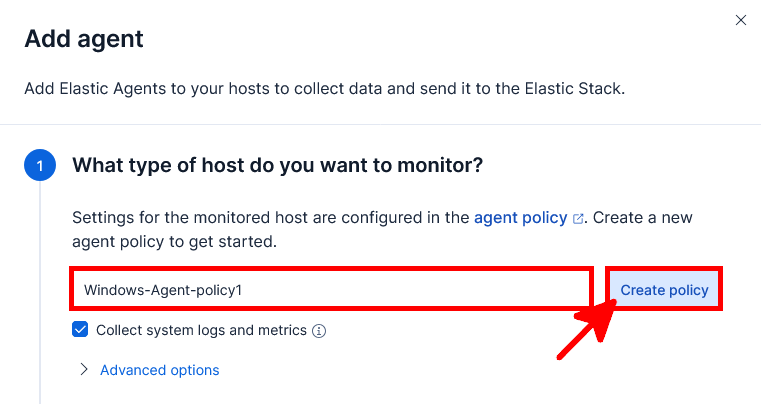
Kibana Fleet Add agent window showing the agent policy name field and the Create policy button for enrolling Elastic Agent on Windows
Creating an agent policy for Windows servers in Kibana Fleet.
  • Select Enroll in Fleet, then choose the Windows x86_64 Elastic Agent platform:
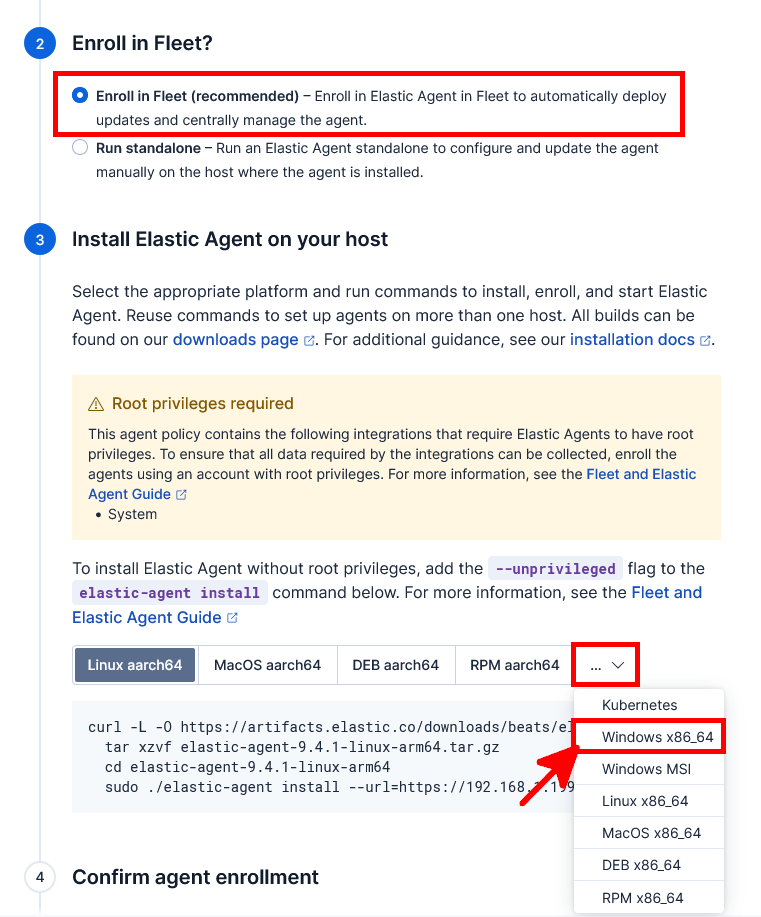
Kibana Fleet Add agent window showing the Enroll in Fleet option selected and the Windows x86_64 Elastic Agent platform selected
Selecting the Windows x86_64 Elastic Agent platform in Kibana Fleet.
  • Copy the PowerShell commands provided by Kibana and run them in an elevated PowerShell terminal on the Windows Server where you want to install Elastic Agent. In this lab, because we use self-signed certificates, add the -i option to the .\elastic-agent.exe install command to allow the agent to enroll through an insecure TLS connection:

Kibana Fleet page showing the PowerShell commands used to install Elastic Agent on Windows, with the insecure TLS option added to the elastic-agent install command
Installing Elastic Agent on Windows with the PowerShell commands generated by Kibana Fleet.
  • Once the installation is complete, Kibana should confirm that the Elastic Agent has been enrolled and that incoming data has been received. You can then close the window:
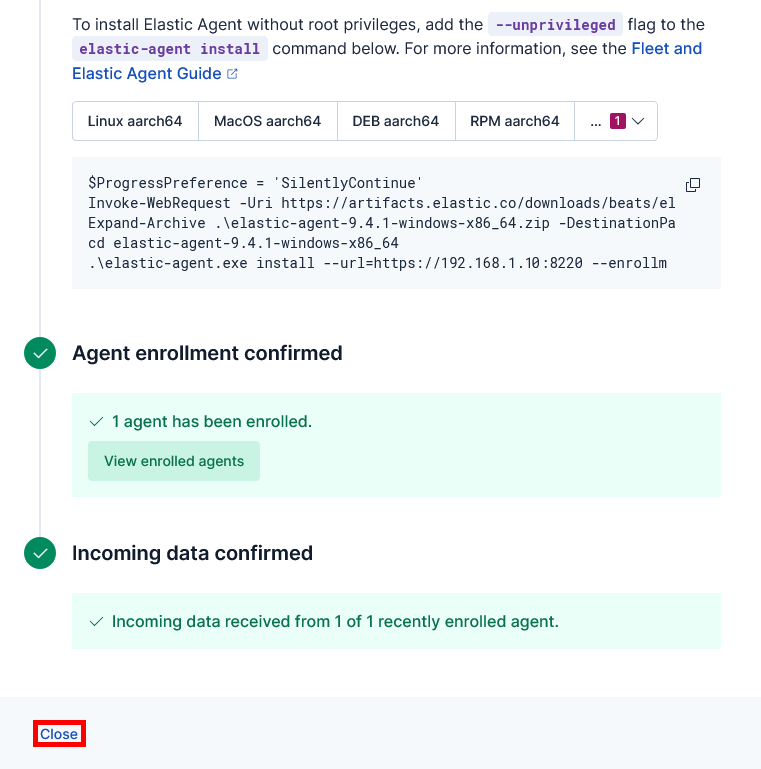
Kibana Fleet confirmation screen showing that Elastic Agent enrollment is confirmed and incoming data has been received from the Windows server
Elastic Agent successfully enrolled in Kibana Fleet with incoming data confirmed.
  • Repeat the Elastic Agent installation on each Windows Server you want to monitor. The enrolled Windows servers should now appear as Healthy in the Agents tab:
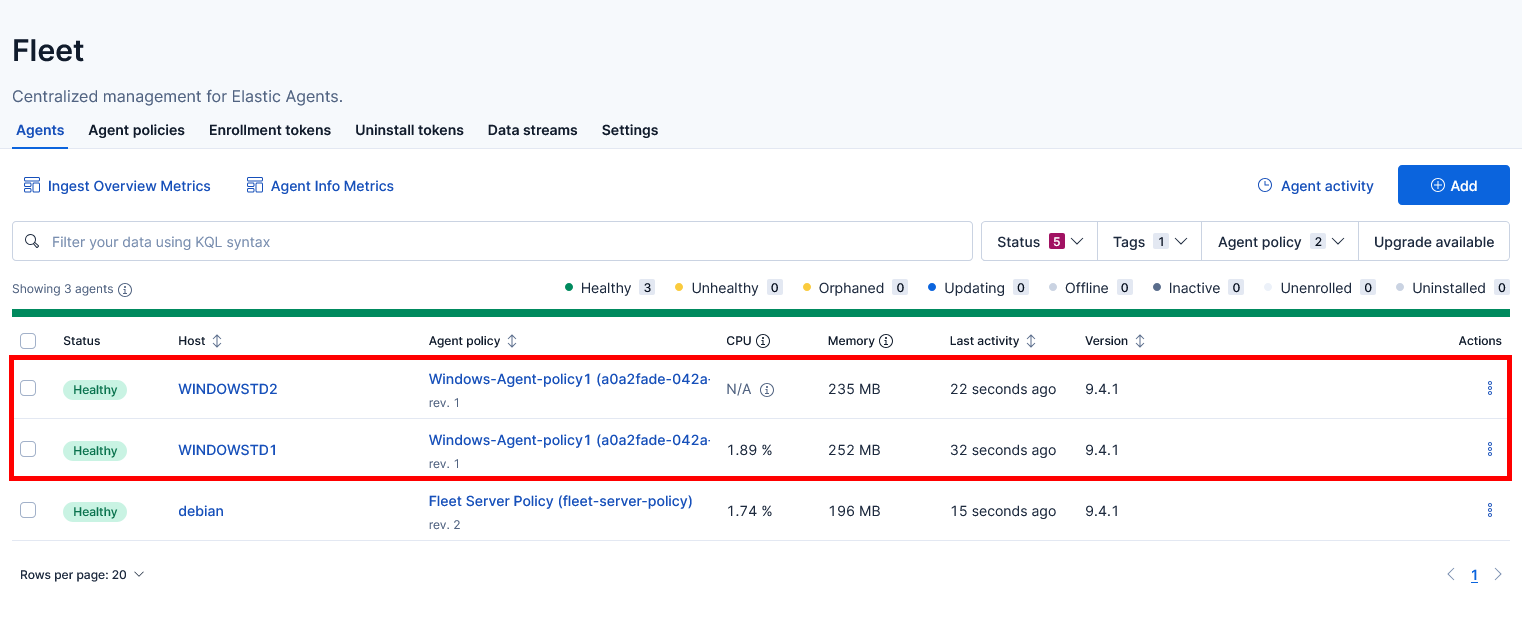
Kibana Fleet Agents tab showing multiple Windows servers enrolled with Elastic Agent and marked as healthy
Windows servers enrolled in Kibana Fleet with Elastic Agent.

Monitor Windows Servers with Kibana Dashboards

  • In Kibana, open the main menu and go to Analytics → Dashboards:
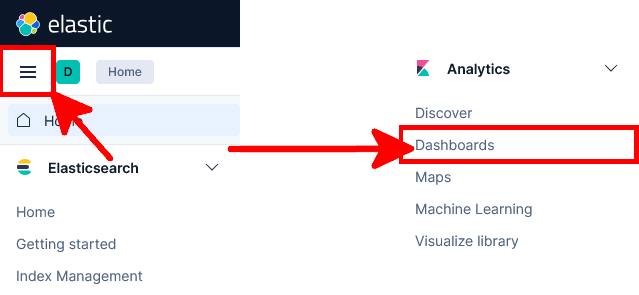
Kibana interface showing how to open the main menu and access Analytics Dashboards
Accessing the Dashboards menu in Kibana.
  • Search for Windows, then open the [System Windows Security] User Logons dashboard:
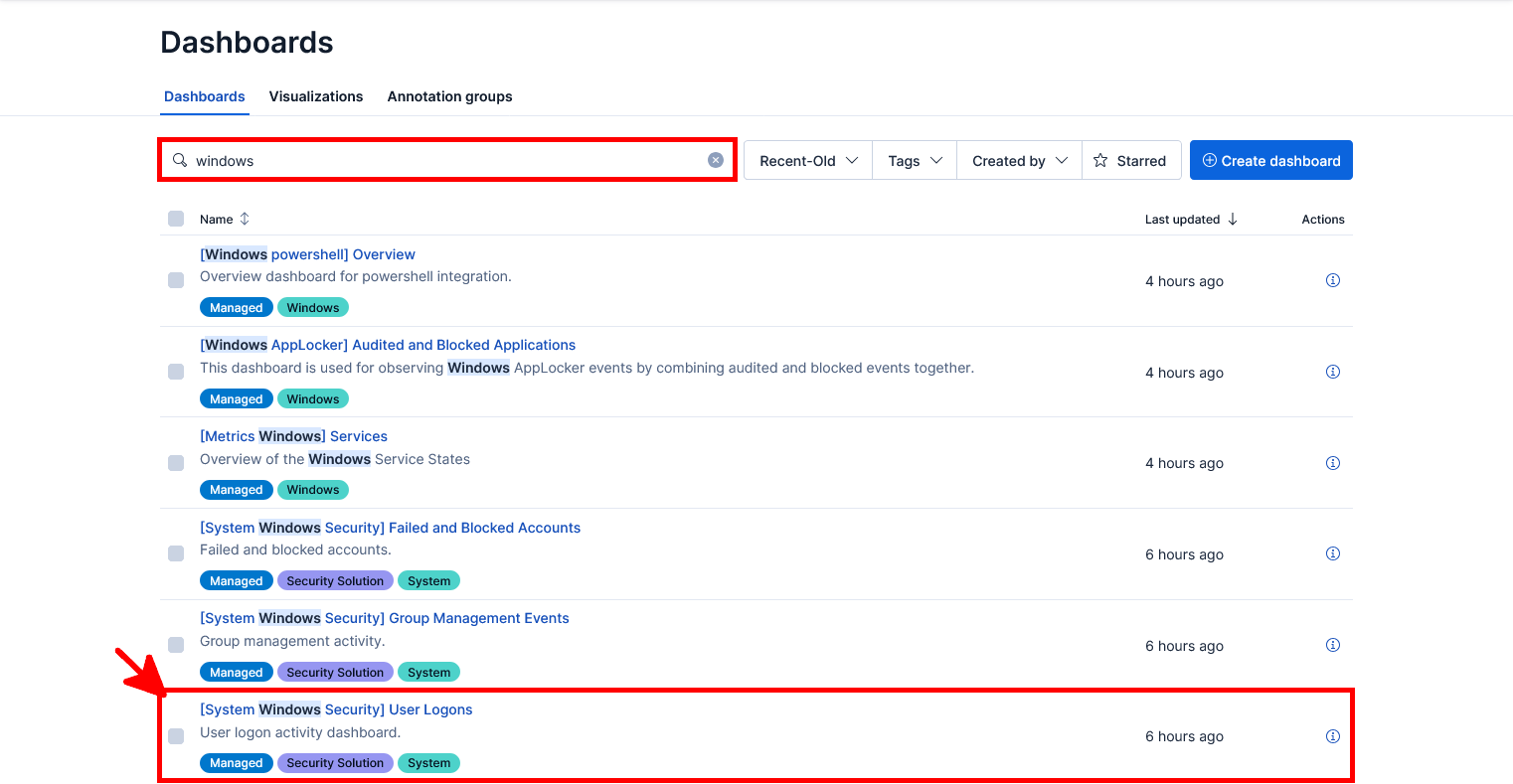
Kibana Dashboards page showing a search for Windows dashboards and the System Windows Security User Logons dashboard
Searching for Windows dashboards in Kibana and opening the User Logons dashboard.
  • The Windows User Logons dashboard is now available and displays logon activity, administrator logons, logon types, and related Windows security events collected by Elastic Agent:
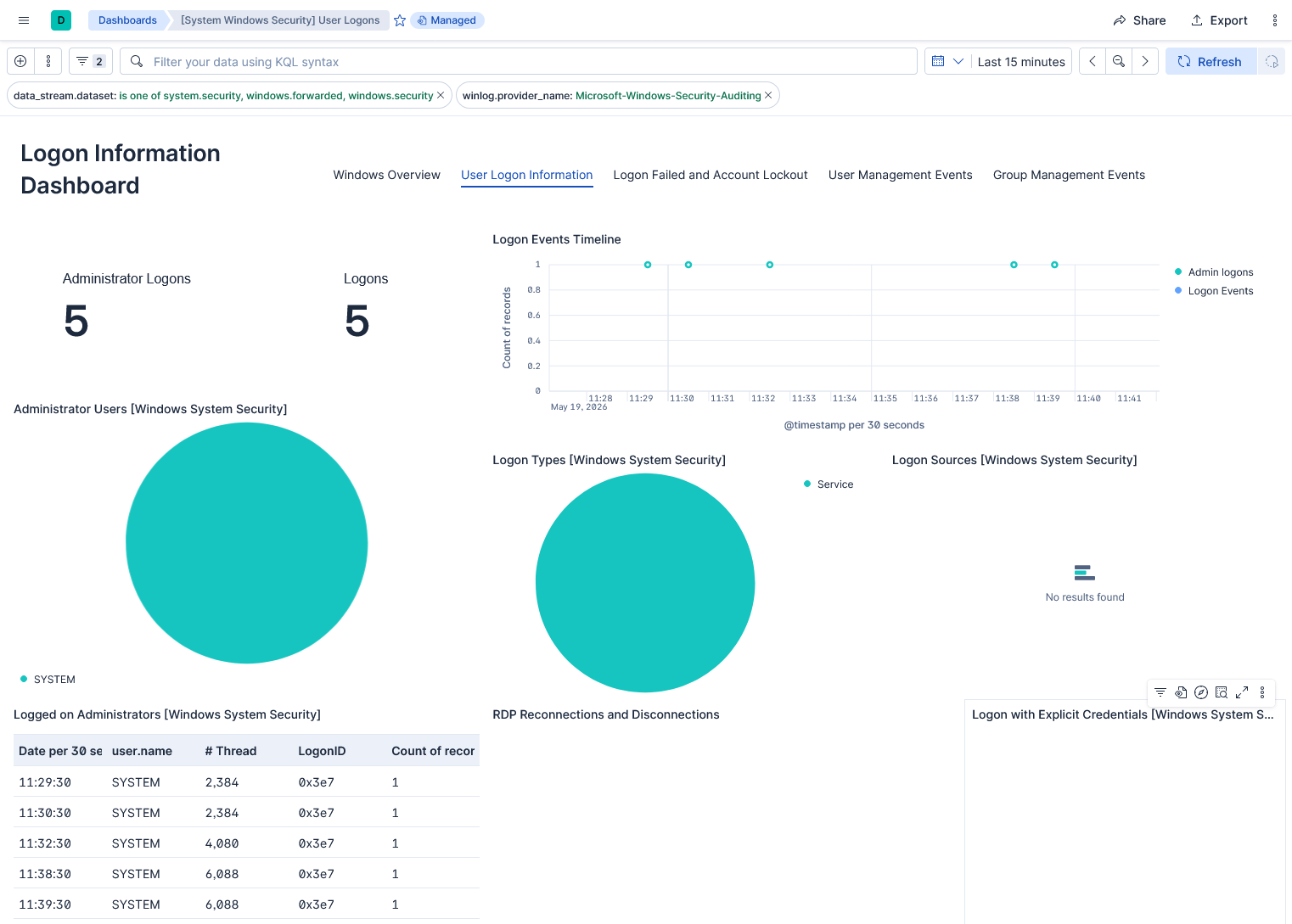
Kibana Windows User Logons dashboard showing administrator logons, logon events, logon types, and Windows security events collected by Elastic Agent
Windows User Logons dashboard in Kibana with events collected by Elastic Agent.